how to use arrow keys on 60 keyboard: Easy, Fast Guide
A few years ago, I decided to switch to a 60% keyboard for my coding setup. I was immediately drawn to its sleek, minimalist design and the promise of more desk space. It looked incredibly cool, but I have to admit, a tiny voice in my head screamed, “Where are the arrow keys?!” Like many, I’d grown up using full-size keyboards where those four dedicated navigation keys felt as essential as the spacebar. The idea of navigating documents or spreadsheets without them seemed like a puzzle I wasn’t sure I wanted to solve. However, after making the leap and spending some quality time with a compact keyboard, I discovered it’s not just possible to use arrow keys on a 60% layout; it can actually be incredibly efficient and surprisingly comfortable once you get the hang of it. This guide shares what I’ve learned to help you master those hidden arrows and unlock the full potential of your compact board.
Understanding Arrow Keys on a 60% Keyboard
A 60% keyboard is all about keeping things small and simple. It omits keys that aren’t used all the time, like the number pad, the F1-F12 keys, and dedicated arrow keys. This is why it’s called “60%” – it has roughly 60 keys, making it much smaller than a standard keyboard. To still have all those functions, these keyboards use a clever trick: a “function layer.”
Think of it like a shift key, but for a whole new set of commands.
When you hold down a special “Fn” (Function) key, other keys temporarily change their function, letting you access those “missing” arrow keys.
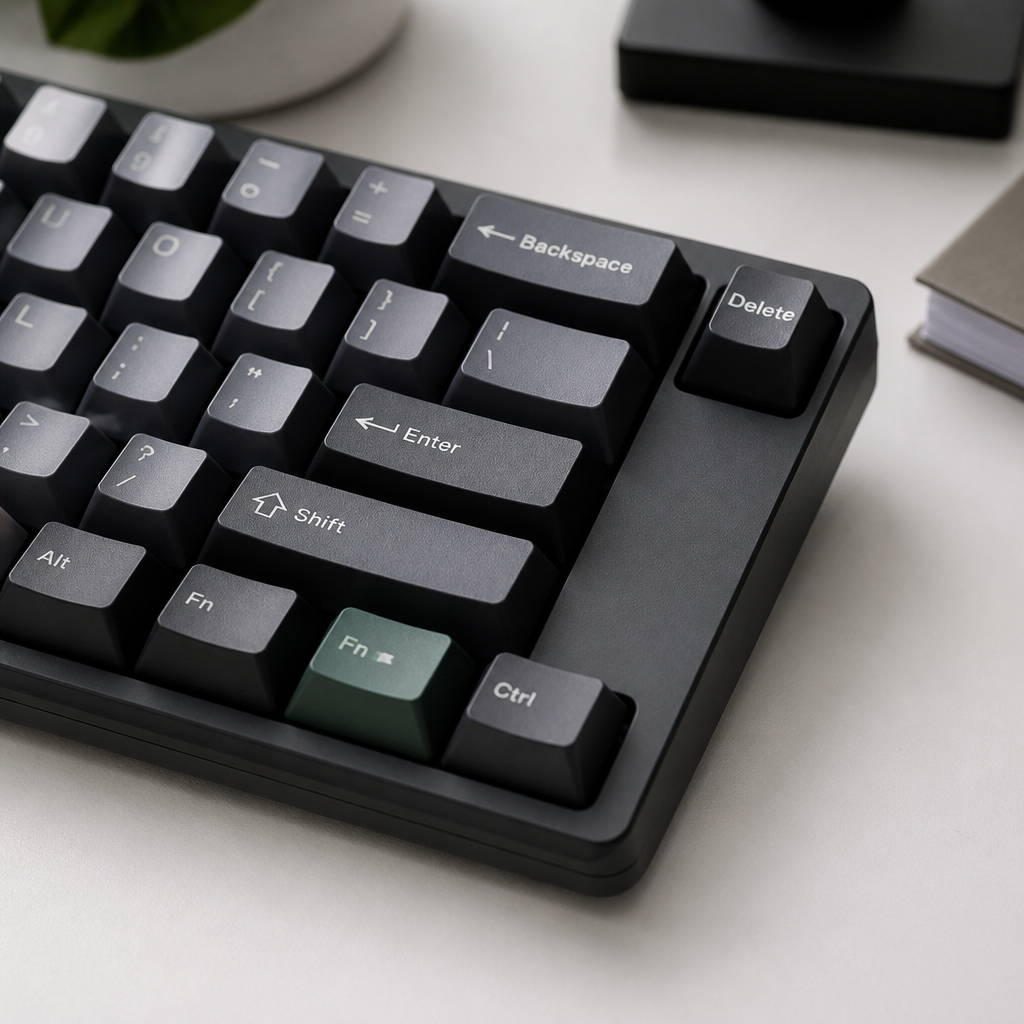
What is the 60 Percent Keyboard Arrow Keys Layout?
The way arrow keys are laid out on a 60% keyboard differs significantly from larger keyboards because they lack dedicated space. Instead, their functions are integrated into the regular letter keys via the special Fn key. Generally, there are three primary arrangements for arrow keys on most 60% keyboards, and each has its followers.
| Layout Style | Keys Used with Fn | Common User Group |
|---|---|---|
| WASD | W (Up), A (Left), S (Down), D (Right) | Gamers |
| IJKL | I (Up), J (Left), K (Down), L (Right) | Programmers/Typists |
| HHKB Style | [ (Up), ; (Left), / (Down), ‘ (Right) | HHKB Users |
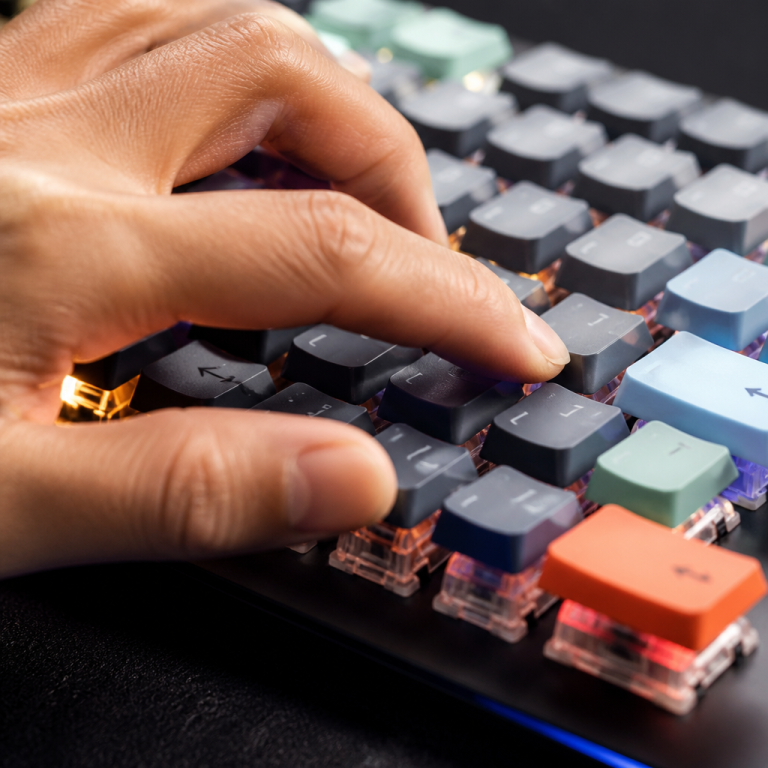
Some highly innovative 60% keyboards feature a “split spacebar.” This means the spacebar is divided, and one section can serve as the Fn key. This enables you to press the Fn-spacebar with your thumb while simultaneously activating an arrow key with another finger. Many modern 60% keyboards also include visual cues, such as small LED lights, that illuminate when you’re in an arrow key mode. By keeping your hands primarily in the home row position, you avoid extensive right-hand movement to reach dedicated arrow keys. This can actually lead to faster and more comfortable typing over long periods by reducing hand motion.
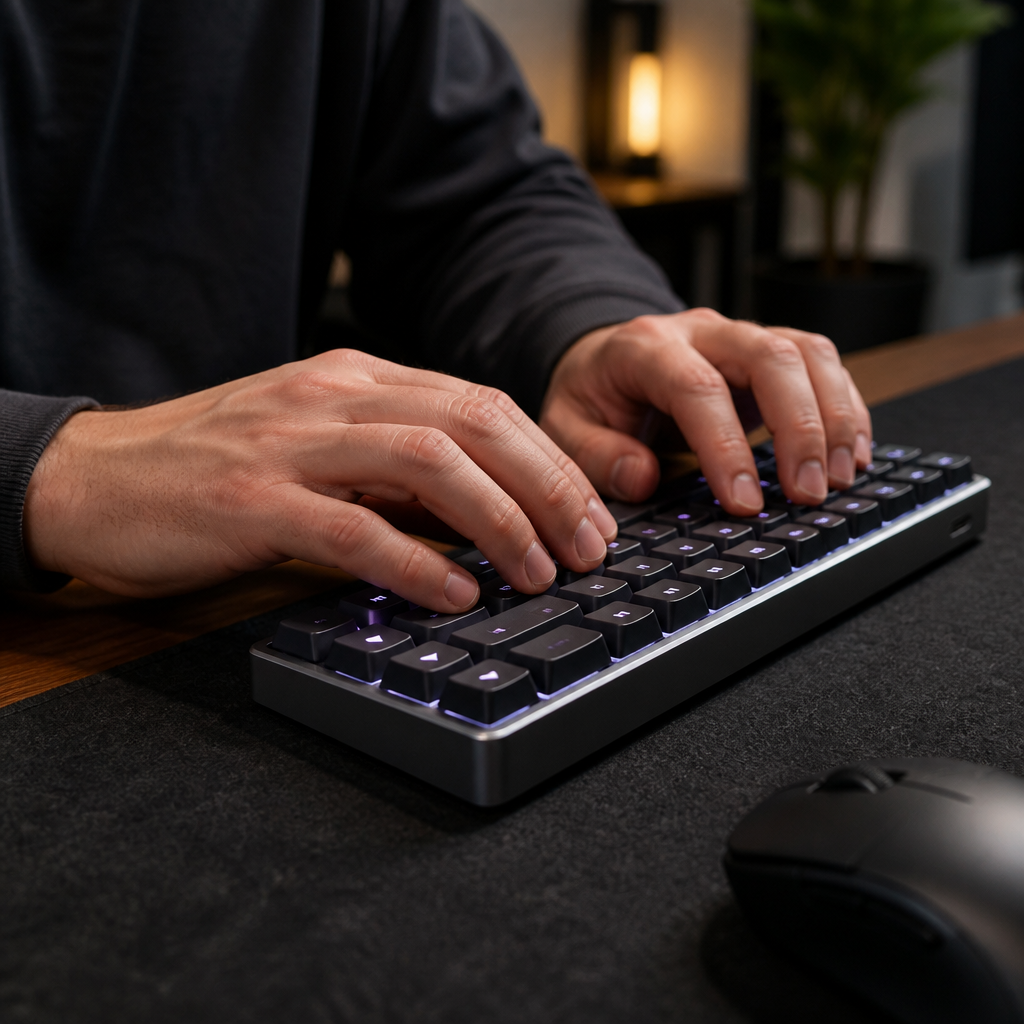
60 Keyboard Arrow Keys vs Full Size Keyboard
When choosing between a compact 60% keyboard and a larger full-size one, the decision typically hinges on whether you prioritize immediate access to all keys or maximizing desk space, particularly concerning arrow keys. One of the most significant advantages of a 60% keyboard is its compact size, which frees up substantial desk real estate. The smaller footprint also means your mouse hand travels less, potentially increasing comfort and reducing strain during prolonged use. The trade-off, however, is adapting to using arrow keys via the function layer.
From an ergonomic perspective, 60% keyboards can actually be beneficial for your hands. By placing arrow keys within the home row or an easily accessible function layer, these keyboards reduce the need for your right hand to move extensively. In my experience, this does lead to less strain during long typing sessions.
However, not everyone favors the 60% layout. Surveys of professional programmers indicate that while many prefer compact keyboards, a larger group still opts for Tenkeyless (TKL) or full-size keyboards. Individuals who work extensively with numbers or use Excel heavily typically prefer full-size keyboards with dedicated arrow keys and a number pad.
Ultimately, deciding between a 60% and a full-size keyboard depends on your preferences and work. If you value desk space and ergonomics, a 60% can be excellent once you navigate the learning phase. But _if your work heavily depends on dedicated arrow keys and a number pad_, a full-size keyboard might remain the more practical option.
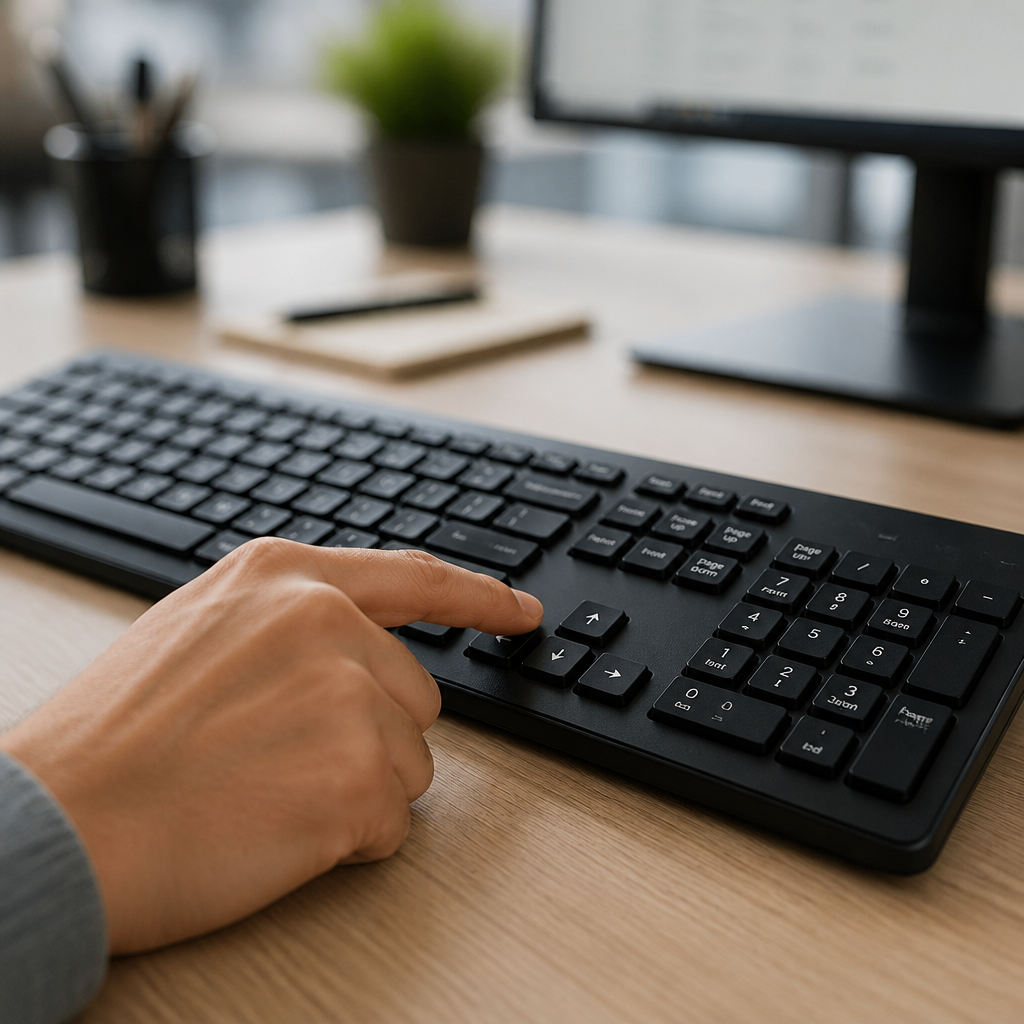
How Do You Set Up and Use Arrow Keys on a 60% Keyboard?
Becoming proficient with arrow keys on a 60% keyboard involves understanding the various methods for activation and customization. Since these keyboards lack separate arrow keys, their functions are typically accessed through the “function layer.” This process can range from simply memorizing key combinations to advanced firmware customization, allowing you to tailor the navigation experience precisely to your needs.
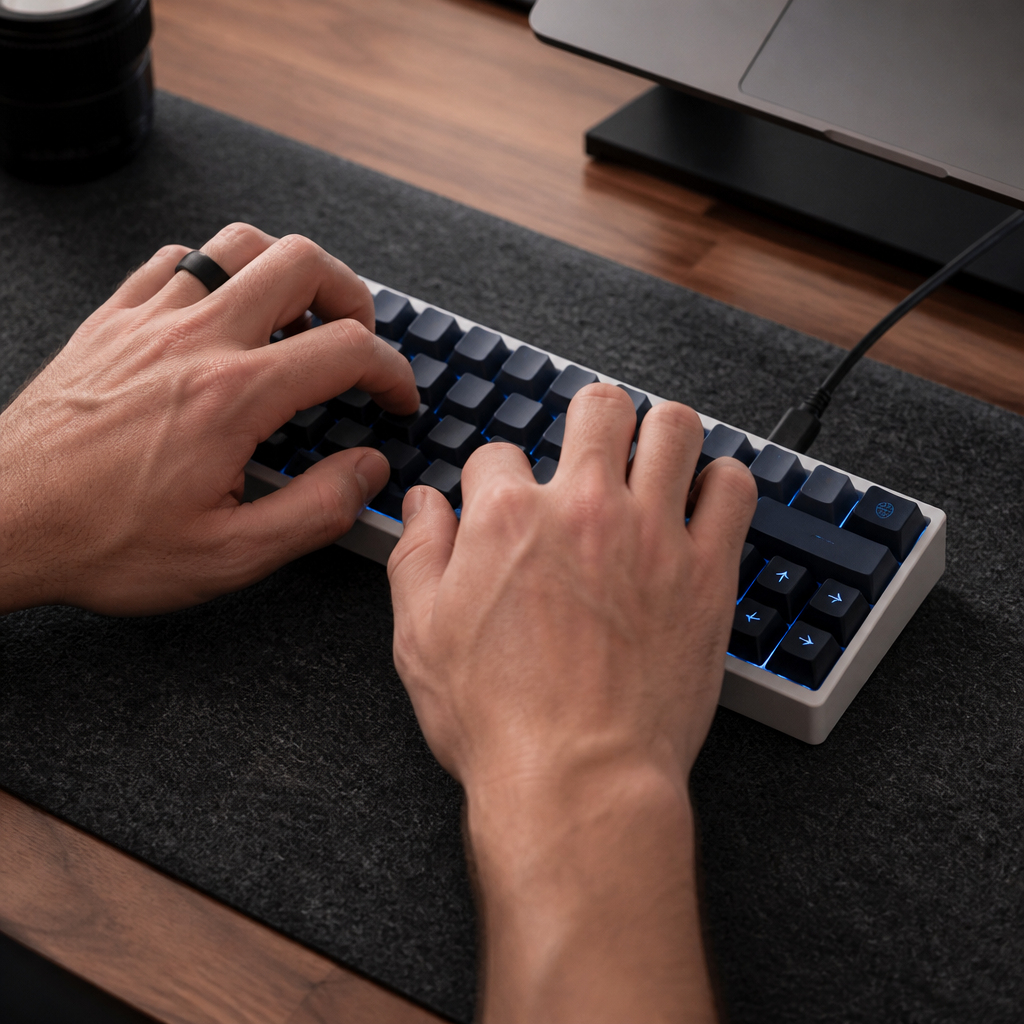
Enable Arrow Keys on a 60% Keyboard
Activating arrow keys on a 60% keyboard generally involves engaging the function layer through different means. The specific method usually depends on your particular keyboard model and its capabilities.
- Fn Key Combinations: The most straightforward way is by holding the Fn (Function) key and then pressing a designated set of keys. These are often WASD for gamers or IJKL for frequent typists. This is typically the default setting.
- DIP Switches: Some 60% keyboards, such as the popular Ducky One 2 Mini, feature small physical switches on their underside. Certain DIP switch configurations can transform a cluster of modifier keys on the bottom-right (like the right Shift, Fn, Ctrl, and Windows keys) into dedicated arrow keys.
- Programmable Software: For users seeking deeper customization, programmable software like QMK (Quantum Mechanical Keyboard) and VIA presents extensive possibilities. VIA-compatible keyboards are notably user-friendly, allowing you to adjust arrow key assignments in real-time through a simple graphical interface. This means you can drag and drop arrow key functions onto any key and test them instantly without complex software updates. Personally, VIA significantly changed how I use my 60% keyboard; I was able to assign arrow keys to a tap layer on my right Shift key, making navigation exceptionally quick and natural.
QMK firmware, while requiring a slightly more technical setup, offers even more granular customization, including ingenious “tap-hold” keys. This allows a single key to perform two different actions depending on how it’s pressed.
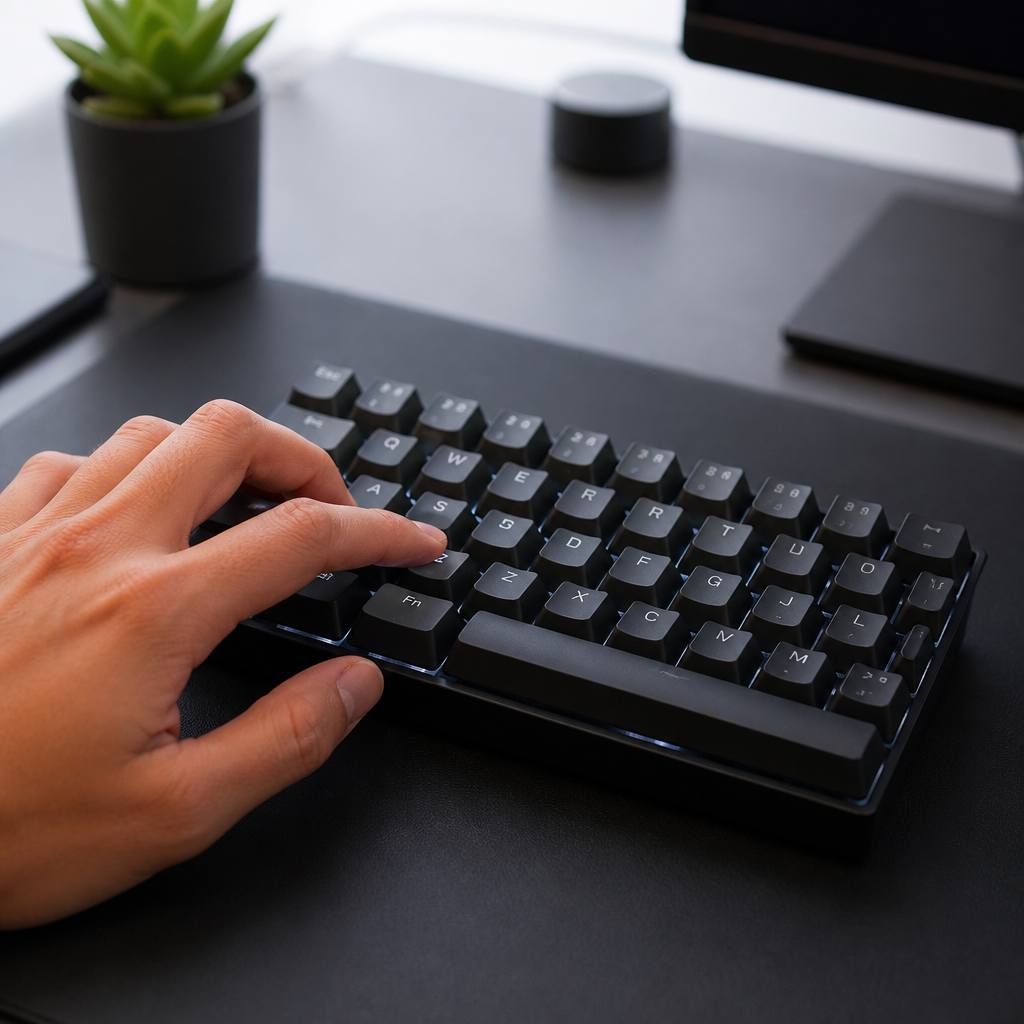
60% Keyboard Fn Key Arrow Keys Setup
The configuration of Fn key arrow keys on 60% keyboards is fundamental to their operation. Most 60% keyboards ship with pre-configured arrow key assignments, like Fn + WASD or Fn + IJKL. Advanced 60% keyboards frequently offer multiple “Fn layers” – such as Fn1, Fn2, or Fn3. This means you can have different sets of key behaviors depending on which Fn layer is active.
For users who desire complete control over their Fn arrow key setup, programmable software like QMK is an extremely valuable resource. Configuring custom Fn arrow keys with QMK firmware involves editing a specific file, typically keymap.c, where you can assign keycodes to your preferred keys. Some keyboards also feature a “Magic Fn” function, allowing you to relocate the Fn key to any desired position, such as Caps Lock.
Even with this extensive flexibility, you might encounter issues. Common troubleshooting steps include _verifying that “Fn lock” hasn’t been accidentally engaged_ or checking your keyboard’s manual for the correct DIP switch configuration.
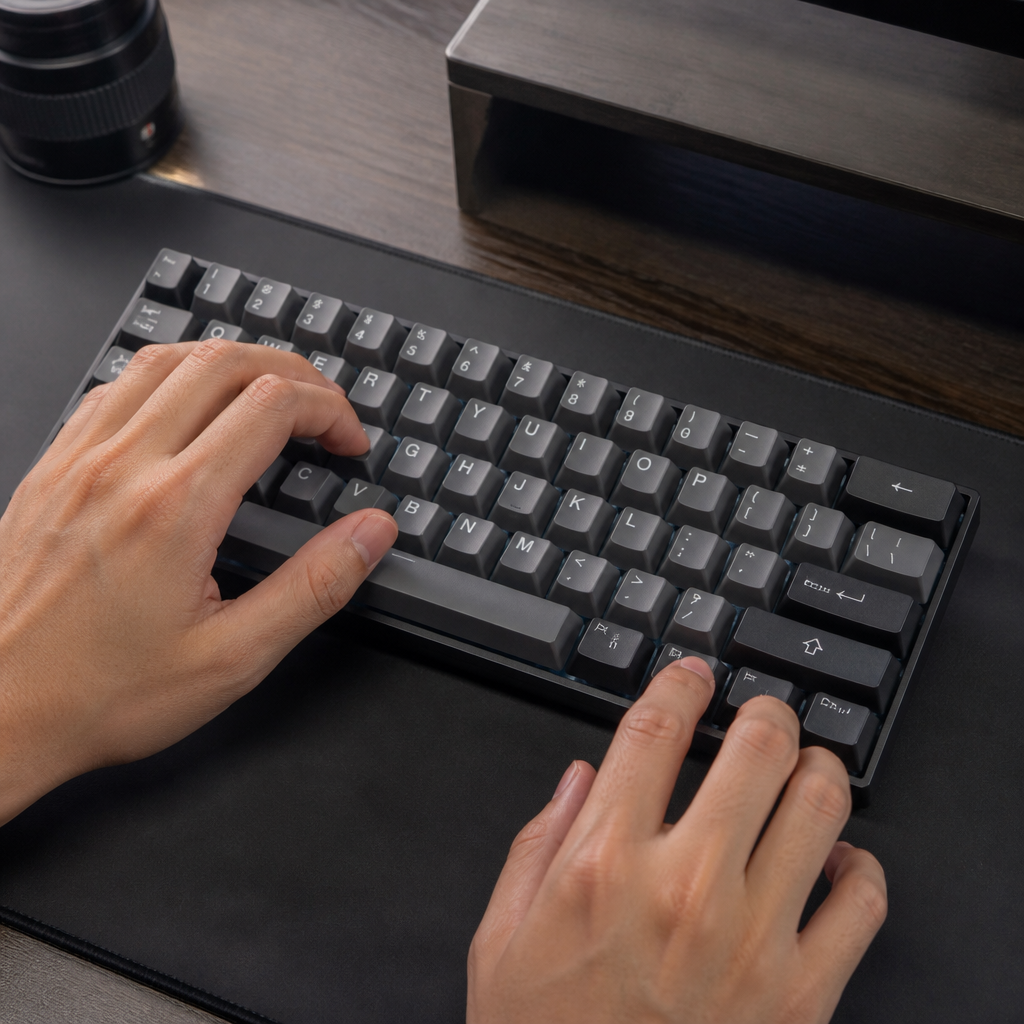
60% Keyboard Arrow Keys Shortcut Keys
Beyond basic directional movement, 60% keyboards become even more powerful through arrow key shortcut keys. These are advanced key combinations that leverage the Fn key and the secondary arrow layer for a wider range of navigation tasks, such as Home, End, Page Up, and Page Down. Learning these shortcuts is vital for efficient text editing, document navigation, and rapid web browsing on a compact keyboard.
Standard 60% keyboard arrow shortcuts often follow a predictable pattern. For example, Fn + Up Arrow commonly functions as Page Up, while Fn + Down Arrow typically serves as Page Down. For horizontal navigation, Fn + Left Arrow is frequently mapped to Home, and Fn + Right Arrow acts as End. For more advanced navigation, 60% keyboards can emulate Ctrl + arrow key functions for word-by-word movement, often with combinations like Fn + Alt + arrow keys. Programmable keyboards also allow you to create “macro shortcuts,” where a single Fn + arrow combination can execute an entire sequence of key presses.
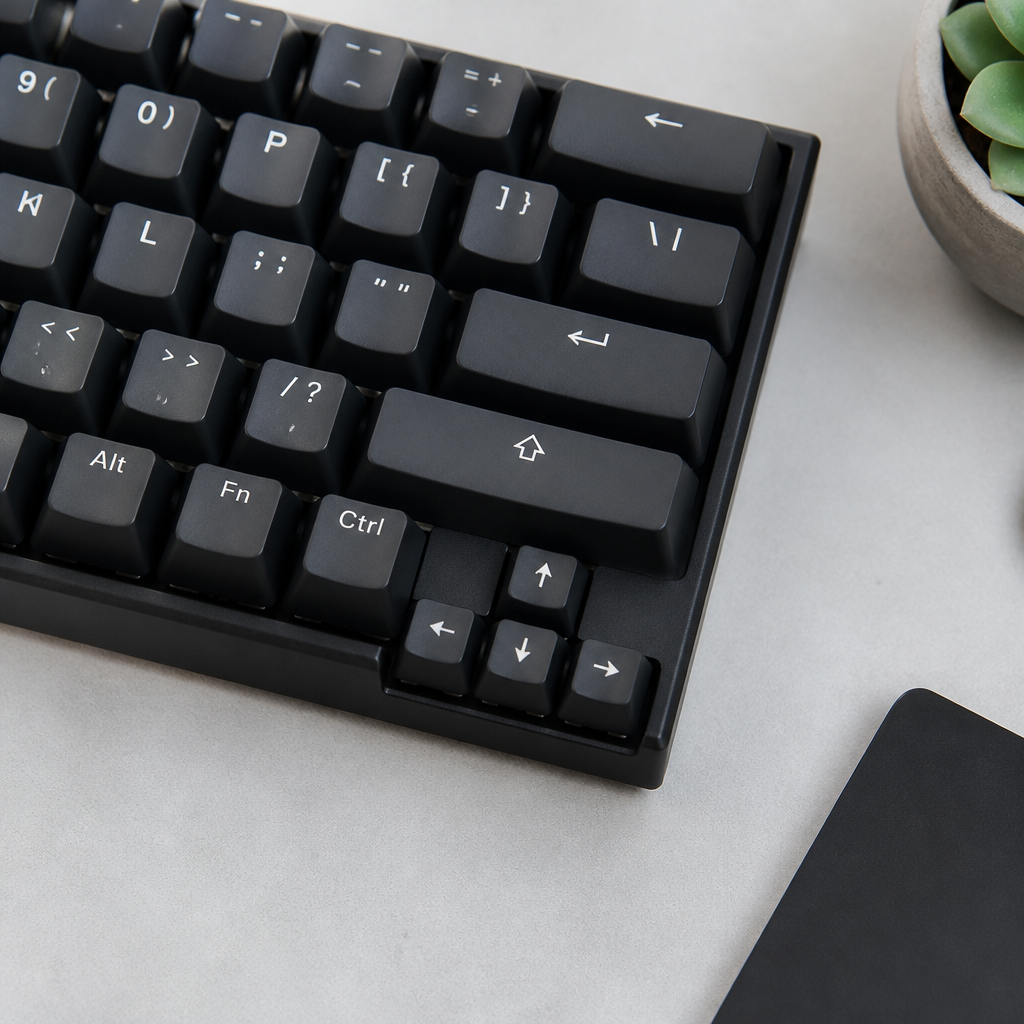
Best 60 Percent Keyboard with Arrow Keys
Selecting the best 60% keyboard with arrow keys is about identifying one that offers accessible arrow key implementation. The ideal choice truly depends on your specific needs – whether you primarily game, program, perform general office tasks, or require a blend of these.
- Ducky One 2 Mini: This keyboard is highly regarded for its robust construction and configurable arrow keys via DIP switches. These allow you to reassign the bottom-right modifier keys into dedicated arrow keys, offering a highly adaptable solution.
- Anne Pro 2: This keyboard distinguishes itself with its innovative “tap-layer” arrow keys. With this feature, keys like the right Shift can function as arrow keys when tapped quickly, reverting to their standard roles when held down. This provides a fluid experience that feels remarkably intuitive.
- Varmilo VA68M: _Although technically a 65% keyboard_, it is often suggested for those who desire dedicated arrow keys. It adds only the arrow key cluster and a Delete key to the standard 60% layout, making it a compelling option for those who find function-layer arrows inconvenient.
- Happy Hacking Keyboard Professional Hybrid: A premium option with a distinctive Fn + [;’/] arrow layout, optimized for programmers who prioritize keeping their hands on the home row.
- Keychron K12: A budget-friendly choice that offers hot-swappable switches, wireless connectivity, and uses the common Fn + WASD layout for arrow keys.
Perhaps the most critical feature for advanced users seeking to customize arrow keys is VIA/QMK compatibility. Keyboards like the DZ60 and Tofu60 provide this capability, allowing for virtually limitless arrow key configurations to perfectly match your preferences. This level of programmability ensures that regardless of your unique navigation needs, your 60% keyboard can be adapted to meet them.
It truly demonstrates that a smaller keyboard doesn’t necessitate fewer features or a more challenging workflow. The slight adjustment period is a minor price to pay for the long-term benefits of improved ergonomics and a cleaner, more efficient workspace.
FAQ
Q1: How do I use arrow keys on a standard 60% keyboard?
A1: On most 60% keyboards, you access arrow keys by holding down the Fn (Function) key and pressing a designated set of keys. Common mappings include Fn + WASD (W=Up, A=Left, S=Down, D=Right) or Fn + IJKL (I=Up, J=Left, K=Down, L=Right).
Q2: What is the learning curve for using Fn-layer arrow keys?
A2: From my experience, the learning curve for Fn-layer arrow keys typically takes about 3-7 days of regular, consistent use to build up muscle memory. Users who are already familiar with keyboard shortcuts or gaming (WASD) may adapt faster.
Q3: Can I customize the arrow key positions on a 60% keyboard?
A3: Yes, many modern 60% keyboards feature programmable firmware like QMK (Quantum Mechanical Keyboard) or VIA. These powerful tools allow you to customize arrow key positions, create multiple function layers, and even set up macros for complex navigation commands. VIA-compatible keyboards are particularly user-friendly, allowing for real-time remapping through a graphical interface without complex coding.
Q4: Are there any 60% keyboards that offer dedicated arrow keys?
A4: While true 60% keyboards typically don’t have physically separate arrow keys, some models offer clever hybrid solutions. For example, the Ducky One 2 Mini has special DIP switches on the back that can convert bottom-right modifier keys into dedicated arrow keys. The Anne Pro 2 features “tap-layer” keys where certain modifiers act as arrow keys when tapped quickly. Alternatively, 65% keyboards like the Varmilo VA68M include a dedicated arrow cluster with only a minimal size increase, offering the best of both worlds for some users.
Q5: What are some common arrow key shortcuts on a 60% keyboard?
A5: Beyond basic directional movement, you can use Fn + arrow key combinations for extended navigation. Common shortcuts include: Fn + Up Arrow for Page Up, Fn + Down Arrow for Page Down, Fn + Left Arrow for Home (start of line), and Fn + Right Arrow for End (end of line). For more advanced navigation, like moving word by word, you might use combinations such as Fn + Alt + arrows, depending on your keyboard’s programming.

Hi, I’m Alex Morgan.
Welcome to my blog! As a dedicated mechanical keyboard enthusiast, I’m passionate about exploring everything from custom builds to the finest details of switches and keycaps. My goal is to break down specs, sound profiles, and ergonomics to help you find the absolute best keyboard for your setup. Whether you’re a gamer, programmer, or desk setup fanatic, I’m here to share honest reviews and practical recommendations.